
Grouping events into a program
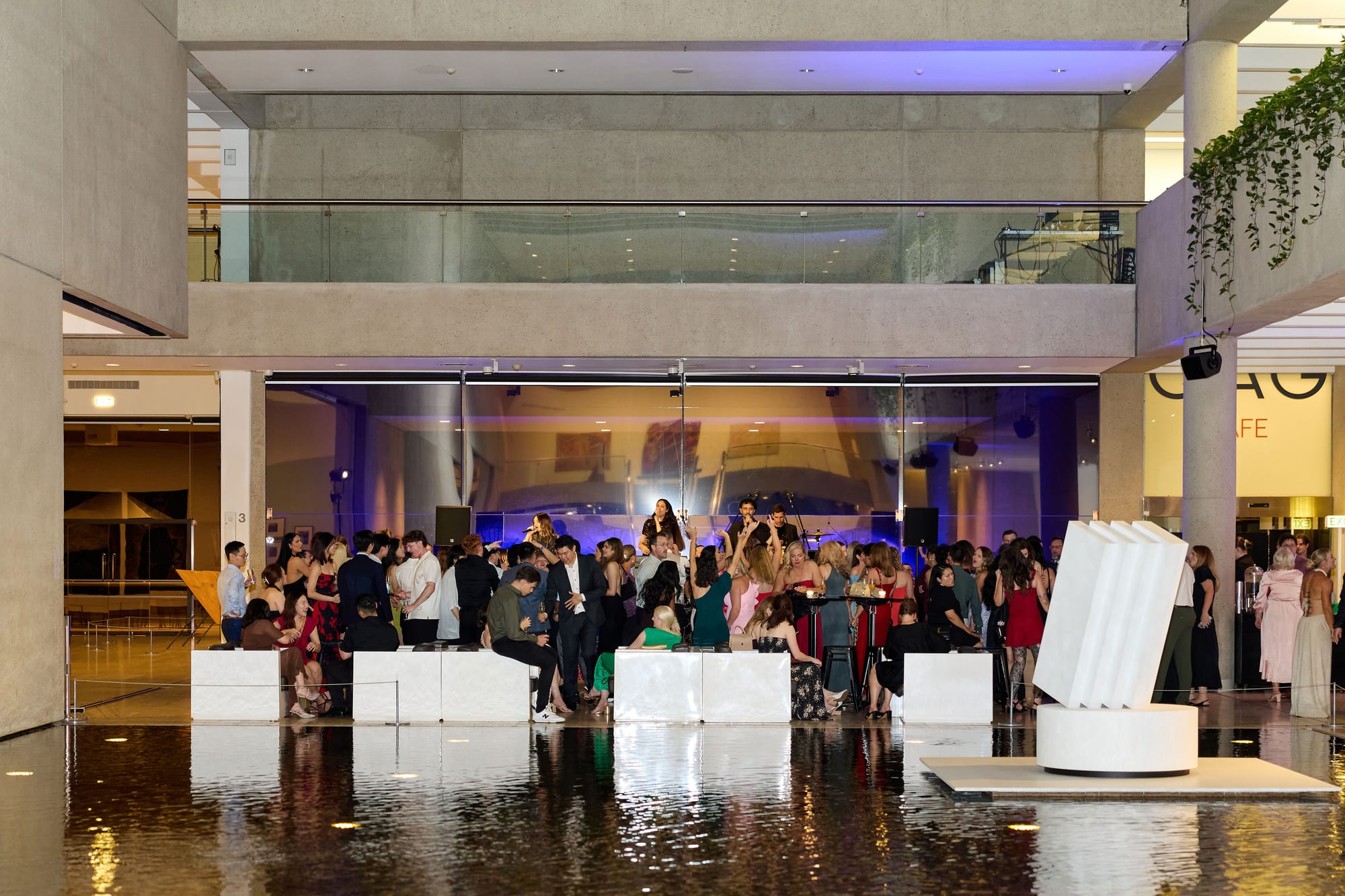
Some occasions are not one event, they are several. A wedding weekend runs from the rehearsal dinner through the ceremony, the reception, and the farewell brunch. A conference spans three days of sessions. A festival is a whole run of nights. In 1pm each of those days is its own event, with its own run of show, its own BEO, its own crew. A Program is the container that ties them together, so a multi-day occasion is one thing to manage and, when the time comes, one thing your client signs and pays for.
This article covers what a Program is, creating one and adding events to it, and the single agreement that confirms the whole occasion at once.
What a Program is
A Program groups events that are parts of the same occasion. The examples that fit it best are the ones you already picture: a wedding weekend, a multi-day conference, a festival. Each event inside the Program stays a full event in its own right, nothing about the day-to-day changes. What the Program adds is a layer above them, so you can see the whole occasion as a unit and confirm it as a unit.
A few things worth knowing up front:
- An event belongs to at most one Program. There is no nesting and no second grouping concept above it. The model is deliberately flat, the same philosophy as Spaces.
- An event not in a Program is standalone. Every event you have ever created is standalone unless you say otherwise, so nothing about your existing events changes.
- The commercial wrapper consolidates, the operational detail does not. Each event keeps its own BEO, run of show, crew, and pricing, because a Friday plated dinner and a Sunday grazing brunch genuinely differ. Only the agreement (sign and pay) becomes one shared step.
Creating a Program
Open Programs in the sidebar, then New program. You are asked for very little:
- Program name, the name of the occasion, for example "Harper wedding weekend".
- Client contact (optional), the person who will sign the one agreement. Leave it on No contact if you are not sure yet, it changes nothing operationally.
- Notes (planner only), anything about the occasion as a whole. This is never shown to crew or clients.
Save with Create program and you land back on the Program, ready to add its events.
Adding events to a Program
There are two ways in, and they reach the same place:
- From the Program. On the Program's edit page, the Events in this program section has an Add an event picker. Choose one of your events and click Add. Only events that are not already in another Program appear in the list. An event that is not Confirmed has its status beside its date (Lead, Tentative, Completed or Cancelled), so you can see what you are adding. If the event joined another Program while the page was open, it is not moved: a message names the Program it is in, and you remove it from there first.
- From an event. On any event's own form there is a Program (group multi-day events) field. Pick the Program there, or leave it on Standalone (no program). This is handy when you are creating the rehearsal dinner and already know it belongs to the weekend.
A Program can also be made for you. When you create an event from a lead and add further dates in that step, 1pm creates an event for each date and groups them in a new Program, named after the first event. The same happens when a client accepts a quote that covers several dates: each day of the quote becomes an event in one Program, and the confirmation for the whole Program is raised for you.
Each event in the Program shows its name, date (first and last day for an event that runs over several days), and status, with a Remove button to take it back out. Removing an event never deletes it, it just becomes standalone again. The Dates column and the header date range are worked out from the events themselves, so the span can never drift out of step with what is actually booked. A cancelled event stays listed in the Program, marked Not billed, but it is left out of the event count and the date range on the Programs list.
The Programs list shows the programs still under way: any with no events yet, and any whose last event was within the past 30 days. Older ones are hidden, and Show past programs above the list brings them back. The Program picker in an event's settings works the same way, and always includes the program the event is already in.
Confirming the whole occasion as one
This is the point of a Program. Instead of sending the client a separate confirmation for each day, asking them to sign four times and pay four deposits, you raise one agreement for the whole occasion.
On the Program's edit page, the Client confirmation card has a Create confirmation button once the Program has events. Raising it does the aggregation for you:
- Every event's charges land on one document, grouped into a section per event and titled with that event's date and name. The pricing is snapshotted at the moment you raise it, so the figures the client agrees to cannot shift underneath them afterwards.
- Every event is listed, priced or not. An event with no charges still appears, marked as no charge, so the client sees the whole occasion rather than wondering what happened to Sunday. A Program with nothing priced yet still raises a document at no cost, listing every event.
- Service charges come across. A service charge on an event's Billing tab is carried onto the agreement. If every event that charges one uses the same percentage, the agreement shows that percentage, applied only to the events that charge it. If the events charge different percentages or fixed amounts, the agreement shows one service charge for their combined total. The one case 1pm refuses is service charges taxed differently from each other (one taxable and one not, two tax rates, or prices that include tax on one event and exclude it on another): the Program page names the events, and you make them match before raising.
- Every date is held. Events still at Lead move to Tentative, each checked against your double-booking settings. If any one of them clashes, nothing is raised and none of them move, and 1pm names the event and what it clashes with.
- One confirmation wins. While a Program confirmation exists, you cannot raise a separate per-event confirmation on one of its events. There is a single source of truth for whether the occasion is signed and paid.
- An event belongs to one agreement at a time. A raised confirmation keeps its own list of events, so moving an event into another Program does not take it off the agreement the first Program already has out. Raising a confirmation for the second Program is refused, and names the document in the way, until you void that one or take the event back out.
If an event in the Program has no pricing, the edit page flags it with a No pricing badge before you raise, so nothing goes out at zero by surprise.
What your client sees
The client opens a clean, read-only page in their browser, no login, headed PROGRAM AGREEMENT. It leads with the pricing, grouped one section per event, and shows a date range across the top for the whole occasion.
Under an Events in this program heading, every day is listed. Each carries a Review in new window link that opens a read-only detail page for that single event, with its date and times, location, service and setup style, menu, pax, and AV notes, so a client who wants the fine print of the Saturday reception can see it without leaving the agreement. Those per-event pages are read-only, there is no sign-off on them. Signing happens once, at the Program level.
The sign-off itself is the same familiar flow as a single event: the client accepts, agrees to your terms with their typed name, and pays the one deposit. For the detail of that flow, see event confirmations and deposits and balances.
When the client signs
Signing the Program agreement, or the deposit landing on one that asks for a deposit, advances every event in the Program from Lead or Tentative through to Confirmed, all in one step. You do not go event by event marking each as booked. An event that is already completed or cancelled is left where it is, never dragged backwards.
From there each event carries on as its own booking, with its own run of show and crew, now all confirmed off the back of a single agreement.
Deleting a Program
You can delete a Program from its edit page. The events in it are never deleted with it, they simply become standalone again, so there is no surprise loss of a day's run of show.
One guard is worth knowing: 1pm will not delete a Program while a live agreement still references it, because that would orphan a document your client has signed. If you genuinely need to remove one, void the confirmation first, which detaches it, then delete the Program.
Related articles
- Event confirmations covers the accept, agree, and pay steps a Program agreement uses, in full.
- Deposits and payment schedules covers asking for the single deposit and tracking what is owed.
- Pricing an event covers the per-event charges a Program agreement aggregates.
- Quotes and invoices covers the other documents in the same family.